
Skip to content
Youths Forum Youths Forum Youths Forum

Tech Blogs & Programming Tutorials

Youths Forum Youths Forum Youths Forum

Tech Blogs & Programming Tutorials

  • Blog
  • News
  • Programming
    • PHP
    • JavaScript
    • JQuery
    • CSS
    • HTML
    • API
  • Stock Market Live
  • Automobiles
    • Cars
  • Gadgets
    • Phones
    • Android Phones

Categories

  • Automobiles (12)
    • Cars (7)
  • Blog (103)
    • Poems (2)
    • Space (2)
  • Command (2)
  • Education (2)
  • Entertainment (4)
  • Gadgets (9)
    • Phones (8)
      • Android Phones (4)
  • HTML Templates (11)
  • IT Training Institutes (1)
  • Lifestyle (4)
  • News (51)
  • Others (23)
  • Programming (296)
    • API (16)
    • CSS (83)
    • Database (4)
    • Hosting (1)
    • HTML (37)
    • JavaScript (117)
      • JQuery (27)
      • ReactJS (7)
    • PHP (116)
  • Python (3)
  • recipes (1)
  • SEE Result (1)
  • Server (3)
  • Blog
  • News
  • Programming
    • PHP
    • JavaScript
    • JQuery
    • CSS
    • HTML
    • API
  • Stock Market Live
  • Automobiles
    • Cars
  • Gadgets
    • Phones
    • Android Phones
Close

Search

JavaScriptOthers

Bulb On/Off Effect using JavaScript

By Admin
February 15, 2021 2 Min Read
Comments Off on Bulb On/Off Effect using JavaScript

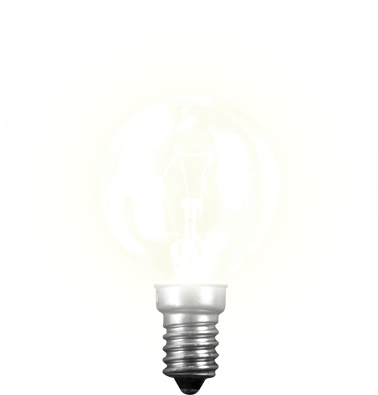
In this tutorial, we will be using JavaScript to create a bulb on/off effect in a webpage. The following source code uses two identical bulb images one in on state while the other in off state.

You can use the following images for the bulb :
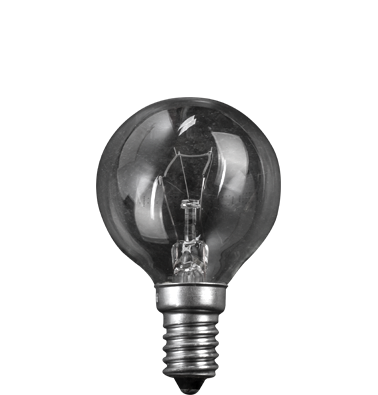
Bulb in Off State

Full Source Code :

<!DOCTYPE html>
<html>
  <head>
    <style>
      body{
        background:#000;
      }
      .bulb-wrapper{
        display: flex;
        align-items: center;
        justify-content: center;
      }
      .switch{
        right: 10px;
        cursor: pointer;
          position: absolute;
          -webkit-touch-callout: none; /* iOS Safari */
          -webkit-user-select: none; /* Safari */
          -khtml-user-select: none; /* Konqueror HTML */
          -moz-user-select: none; /* Old versions of Firefox */
          -ms-user-select: none; /* Internet Explorer/Edge */
          user-select: none; 
      }
      .onoff-on {
          background-color: #00a65a!important;
          border-color: #008d4c;
          color: #fff;
          padding: 5px 5px;
          text-align: left;
          border-radius: 5px;
          border-right: 70px solid #ddd;
          width: 70px;
          -webkit-box-shadow: inset 0 3px 5px rgb(99 0 0 / 13%);
          -moz-box-shadow: inset 0 3px 5px rgba(99,0,0,.125);
          box-shadow: inset 0 3px 5px rgb(99 0 0 / 13%);
          text-align: center;
          cursor: pointer;
      }
      .onoff-off {
          background-color: #f56954!important;
          border-color: #f4543c;
          color: #fff;
          padding: 5px 5px;
          text-align: right;
          border-radius: 5px;
          border-left: 70px solid #ddd;
          width: 70px;
          text-align: center;
          -webkit-box-shadow: inset 0 3px 5px rgb(99 0 0 / 13%);
          -moz-box-shadow: inset 0 3px 5px rgba(99,0,0,.125);
          box-shadow: inset 0 3px 5px rgb(99 0 0 / 13%);
      }
      #on,#off{
        width: 38%;
      }
    </style>
  </head>

  <body>

  <div id="switch" class="switch onoff onoff-off">Off</div>
  <div class="bulb-wrapper">
    <img id="off" src="off.png">
    <img id="on" style="display:none;" src="on.png">
  </div>

  <script>
    var bulb_on = document.getElementById('on');
    var bulb_off = document.getElementById('off');
    var switch_btn = document.getElementById('switch');
    
    function toggleOnOff(){
      if (window.getComputedStyle(bulb_on).display === "none") {
        bulb_on.style.display = 'block';
        bulb_off.style.display = 'none';
        switch_btn.innerHTML = 'On';
      }else{
        bulb_on.style.display = 'none';
        bulb_off.style.display = 'block';
        switch_btn.innerHTML = 'Off';
      }
      toggleSwitch();
    }

    function toggleSwitch(){
      switch_btn.classList.toggle("onoff-on");
      switch_btn.classList.toggle("onoff-off");
    }
    switch_btn.addEventListener('click',function(){
      toggleOnOff();
    });
  </script>
  
  </body>
</html>


Follow this video for complete guidance :

Tags:

bulbjavascript
Author

Admin

Follow Me
Other Articles
Previous

Skeleton Loading Screen Animation using HTML and CSS

Next

Create Marquee in webpage using CSS

FIFA World Cup 2026 Predict and Win by SportsGuff

Recent Posts

  • Unpacking Nepal’s Record Rs 2.12 Trillion Budget and What It Means for You
  • How to Write a Strong Scholarship Application: The Ultimate Step-by-Step Guide
  • How to Prepare for Exams Without Stress: The Ultimate Science-Backed Guide
  • Chiranjibi Adhikari Appointed Acting President of CAN Federation
  • How to Design a Student Marksheet Using HTML and CSS

Tags

adsense ai animate animation animation using HTML and CSS API blog calculator chatgpt Cryptocurrency CSS css animation design Email Facebook featured filemanager file manager free template google htaccess HTML image Instagram interview javascript JQuery jquery ui NADA AutoShow NADA Auto Show 2024 password PHP Progressive Web App PWA QR random react reactjs Rotate travel Twitter vpn youthforum youthsforum youtube

About Us

At Youths Forum, we are passionate about sharing knowledge that empowers students, educators, professionals, and technology enthusiasts.

Our Mission

Our mission is simple: to make technology and education accessible, understandable, and beneficial for everyone. We strive to create content that helps our readers learn new skills and stay updated with industry developments.

RSS RSS

  • Unpacking Nepal’s Record Rs 2.12 Trillion Budget and What It Means for You Admin
  • How to Write a Strong Scholarship Application: The Ultimate Step-by-Step Guide Admin
  • How to Prepare for Exams Without Stress: The Ultimate Science-Backed Guide Admin

Quick Links

  • Stock Market Live
  • Parliament Election 2082
Copyright 2026 — Youths Forum. All rights reserved. Blogsy WordPress Theme